Getting Started with NubOps: Connect Azure & Create a Snapshot

NubOps project onboarding connects your Microsoft Azure tenant via a Microsoft Work Account or an Entra ID App Registration to capture a read-only environment snapshot in under five minutes—with no agents to install and zero write permissions required. From a single snapshot, NubOps automatically generates interactive Diagrams, searchable Resource Reports (exportable to Excel .xlsx or CSV .csv), IP Address Manager inventories, Audit Report CIS checks, and Vulnerabilities exposure views.
In native Azure tools, onboarding a new engineer, architect, or auditor requires granting fragmented portal access across subscriptions, running ad-hoc PowerShell discovery scripts, or manually drawing Visio diagrams that go stale immediately. NubOps replaces manual discovery by querying Azure Resource Manager (ARM) APIs once per snapshot, correlating resource relationships and network topology automatically, and encrypting every captured snapshot with a unique per-project key held in Azure Key Vault.
Microsoft Work Account vs. Entra ID App Registration vs. Live Demo
| Dimension | Interactive Live Demo | Microsoft Work Account | Entra ID App Registration |
|---|---|---|---|
| Best For | Evaluating NubOps features immediately before connecting a tenant | Individual evaluations and fast onboarding with your existing login | Standardized, repeatable multi-subscription coverage for a team |
| Azure Setup Required | None (app.nubops.com/demo) | Sign in and accept NubOps Azure Connector delegated prompt | Create an Entra ID App Registration, Client Secret, and IAM role |
| Azure Permissions Used | Pre-loaded sample Azure environment | Subscriptions your signed-in identity can already read (user_impersonation) | Explicit Reader (plus optional Security Reader) on selected subscriptions |
| Entra ID Admin Involvement | None | Only if tenant User consent settings block user consent | Required to register the application and assign subscription IAM roles |
| Credential Storage in NubOps | None (shared read-only guest session) | OAuth account identifier only; re-authenticates when needed | Stores Tenant Id and Client Id only; Client Secret is never stored |
Prerequisites
Before creating your first project in NubOps, ensure you have the following:
- A NubOps account or demo session: Sign in at
https://app.nubops.com(using your Microsoft work account or email), or explore the NubOps live demo tenant first with sample data. - Read access to at least one Azure subscription: Either an Entra ID work account with read access (
Readeror higher) or a pre-configured Entra ID App Registration. - Organization permissions in NubOps: Project Create (
project:create) permission in your active NubOps organization.
Connect Your Azure Tenant and Create Your First Project
Step 1: Open the New Project Wizard and Choose a Connection Method
From the My Projects dashboard, click Create new project in the top-right corner (or open the project switcher next to your organization name in the top navigation bar and select + Create New Project) to launch the New project modal.
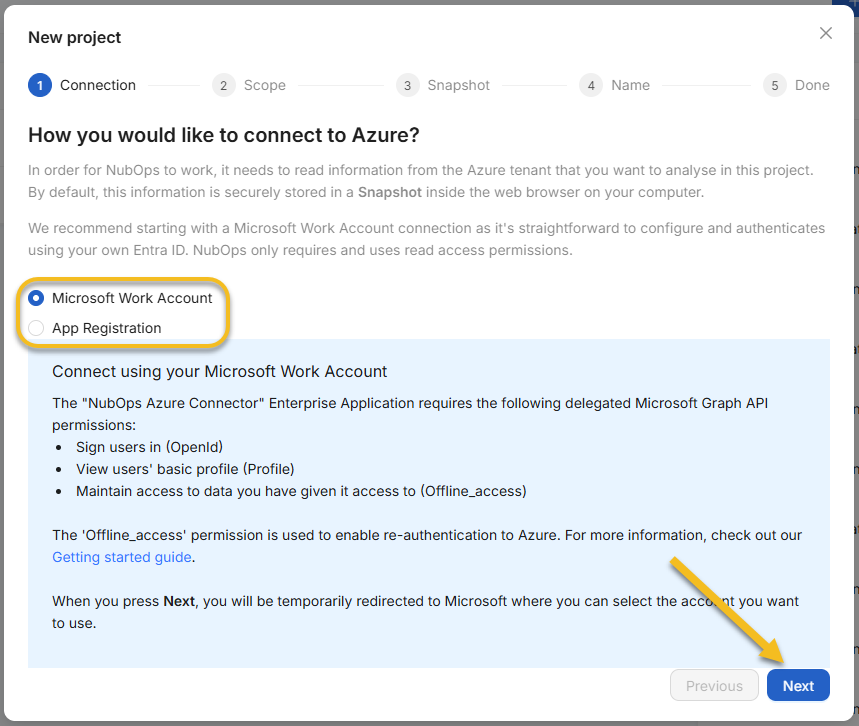
In the Connection step (How you would like to connect to Azure?), select one of the two radio options and click Next:
- Microsoft Work Account (Recommended default): Redirects you to Microsoft to sign in with your Entra ID account and authorize the NubOps Azure Connector enterprise application.
- App Registration: Opens the App registration step where you enter your Tenant Id, Client Id, and Client Secret, then click Verify until you see Connection verified successfully. Press Next to proceed.
Detailed Connection Guides: Need help with Entra ID user consent policies or setting up a service principal? Follow Connect Azure Using a Microsoft Work Account or Connect Azure Using an Entra ID App Registration.
Step 2: Select Your Azure Tenant and Subscriptions (Scope)
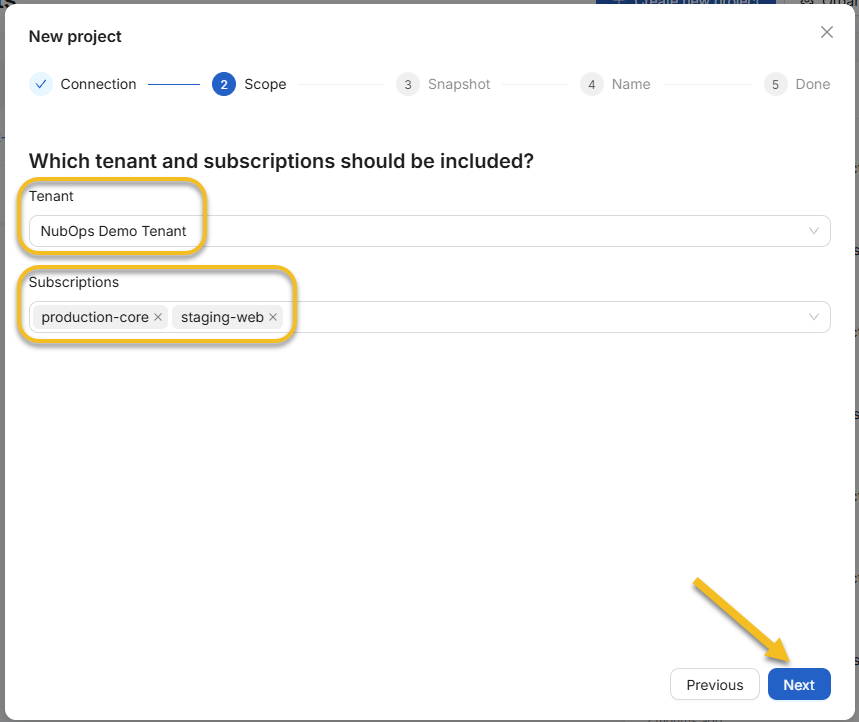
In the Scope step (Which tenant and subscriptions should be included?), open the Tenant dropdown (Select a tenant) and pick the Azure Entra ID tenant you want to analyze. Next, open the Subscriptions multi-select dropdown (Select one or more subscriptions) and select every Azure subscription to include in this project.
If your account only has access to a single tenant and a single enabled subscription, NubOps pre-selects both automatically. Click Next to continue.
Step 3: Choose Snapshot Storage and Capture Your First Snapshot
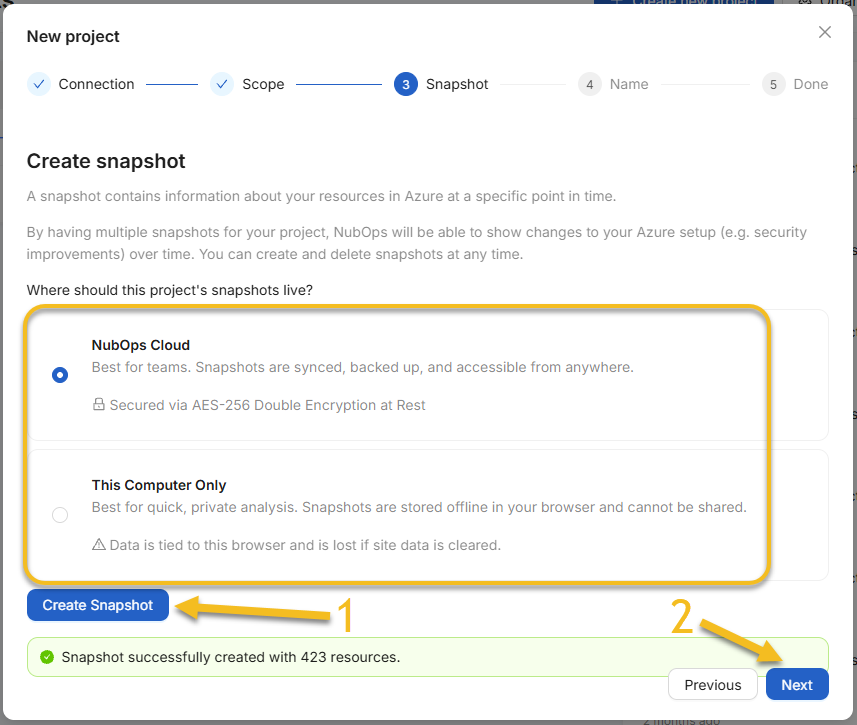
In the Snapshot step (Create snapshot), choose where your project’s snapshots should live under Where should this project’s snapshots live?:
- NubOps Cloud (Default): Best for teams. Snapshots are synced, backed up in Sweden (EU), shared with authorized organization members, and Secured via AES-256 Double Encryption at Rest.
- This Computer Only: Best for quick, single-user analysis. Snapshots are encrypted and stored offline in your browser (
IndexedDB) and never leave your device.
Click Create Snapshot to open the snapshot progress dialog. NubOps queries Azure Resource Manager APIs and displays real-time progress. When the job finishes, click Close in the progress dialog to return to the wizard—where a green success banner confirms Snapshot successfully created with <N> resources.—and click Next.
Step 4: Name Your Project and Start Exploring
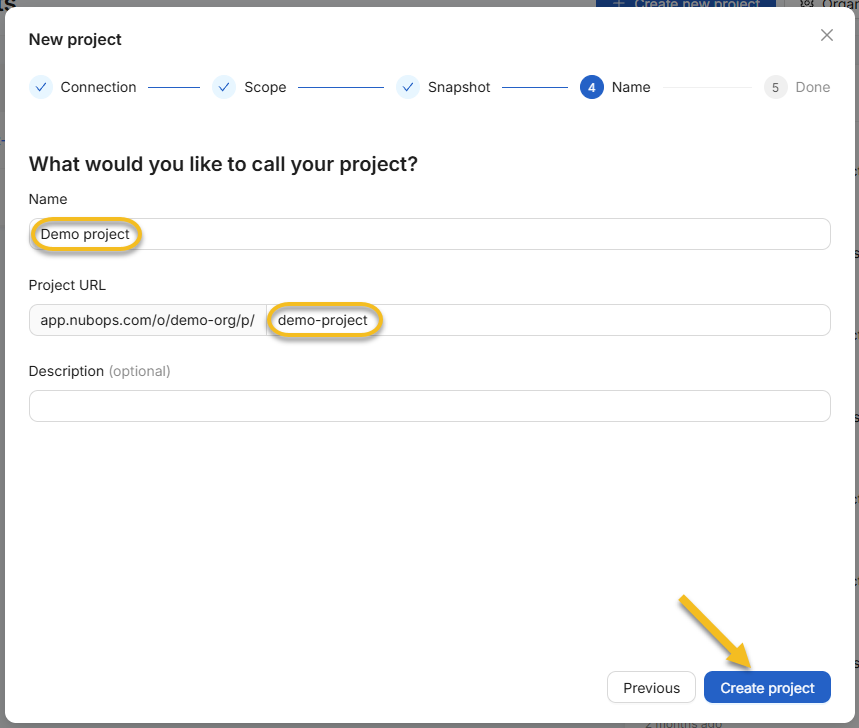
In the Name step (What would you like to call your project?), enter a project Name (for example, Production Landing Zone). NubOps automatically generates the lowercase URL slug in Project URL (app.nubops.com/o/<org-slug>/p/<project-slug>), which you can customize using lowercase letters, numbers, and dashes. Optionally add a Description, then click Create project.
When the Done step displays Project created successfully (Press Close to start working with your new project.), click Close. NubOps opens your project on the Overview dashboard, where you can immediately navigate across Diagrams, IP Address Manager, Audit Report, Resource Reports, Vulnerabilities, and Project Properties.
Snapshot Storage & Encryption Reference
Every NubOps project uses an isolated encryption key managed in Azure Key Vault. You select the storage mode per project during Step 3 of the New project wizard:
| Storage Property | NubOps Cloud (Default) | This Computer Only (Browser Local) |
|---|---|---|
| UI Label & Badge | NubOps Cloud (Secured via AES-256 Double Encryption at Rest) | This Computer Only (Data is tied to this browser and is lost if site data is cleared.) |
| Physical Storage Location | NubOps Azure Storage Account hosted in Sweden (EU) | Local web browser storage (IndexedDB) on your machine |
| Encryption Model | AES-256 double encryption at rest | AES-256 client-side encryption inside your browser |
| Key Management | Unique per-project key stored in Azure Key Vault (soft delete + purge protection) | Unique per-project key stored in Azure Key Vault |
| Team Collaboration | Shareable with members and teams across your NubOps organization | Single-user only; cannot be shared across devices or teammates |
| Snapshot History Retention | Unlimited full-detail snapshots kept until you delete them | Unlimited full-detail snapshots kept until browser site data is cleared or deleted |
Practical Azure Use Cases by Role
Once your first snapshot completes, every engineering discipline in your organization works from the same verified Azure baseline:
- Azure Cloud Architects: Open Diagrams to inspect auto-generated virtual network topologies, peering links, and resource dependencies without drawing a single shape by hand. Create separate projects per environment or customer tenant and track architectural evolution across unlimited historical snapshots.
- Azure Cloud Engineers: Jump straight into Resource Reports and IP Address Manager to search every resource across subscriptions, extract nested ARM settings with Custom JSON Path Properties, identify unattached disks or public IPs, and export clean inventories to Excel (
.xlsx) or CSV (.csv). - Azure Security Experts: Review Audit Report to verify CIS Microsoft Azure Foundations Benchmark compliance and open Vulnerabilities to correlate Microsoft Defender findings with internet exposure—seeing immediately which vulnerable workloads have public IPs, App Gateways, or missing WAF policies.
Frequently Asked Questions
Does NubOps require write permissions or agents in my Azure subscriptions?
No. NubOps queries Azure Resource Manager (ARM) APIs using strictly read-only permissions to capture a point-in-time snapshot. There are no agents to deploy, and NubOps never creates, modifies, or deletes resources in your live Azure environment.
Should I connect Azure using a Microsoft Work Account or an Entra ID App Registration?
Start with a Microsoft Work Account for instant setup using the Azure subscriptions your Entra ID identity can already read. Choose an Entra ID App Registration when you want dedicated, service-principal-scoped read coverage across a team.
What is the difference between NubOps Cloud and This Computer Only snapshot storage?
NubOps Cloud stores snapshots in Sweden (EU) with AES-256 double encryption at rest and per-project keys in Azure Key Vault so your team can share access. This Computer Only stores AES-256 encrypted snapshots offline in your browser’s IndexedDB.
Can I evaluate NubOps without connecting my own Azure tenant first?
Yes. You can launch the interactive NubOps demo workspace at https://app.nubops.com/demo on your desktop with pre-loaded Azure architecture diagrams, Resource Reports, CIS policy audits, and vulnerability findings—no login or Azure connection required.
Next Steps: Explore Your Snapshot or Try the Live Demo
Whether you are mapping multi-subscription topologies as an Azure Cloud Architect, building cross-subscription inventories as an Azure Cloud Engineer, or auditing CIS compliance and exposure as part of an Azure Security team, your first snapshot unlocks the entire NubOps platform:
- Connecting with your own login? Read Connect Azure Using a Microsoft Work Account.
- Provisioning a service principal? Follow Connect Azure Using an Entra ID App Registration.
- Ready to build custom Excel inventories? Continue to the Azure Resource Reports Quickstart.
Want to explore a populated workspace right now before connecting your tenant? Launch the interactive NubOps demo environment on your desktop—no signup or Azure credentials required.