How to Create and Customize Azure Resource Reports in NubOps

NubOps Resource Reports is a visual reporting engine that generates a customizable Azure resource inventory report across multiple subscriptions from read-only Azure environment snapshots—without requiring Azure Resource Graph (KQL) queries or PowerShell scripts. Cloud engineers, architects, and security teams can filter by resource type, combine Azure Resource Manager (ARM) properties with networking and security context, save reusable report templates at the Organization or Project scope, and export Azure resources directly to Excel (.xlsx) or CSV (.csv).
In native Azure tools, compiling a cross-subscription inventory requires clicking through fragmented Azure Portal blades, writing complex multi-table join and mv-expand queries in Azure Resource Graph Explorer, or manually stitching together inconsistent CSV exports. NubOps eliminates this manual overhead by pre-correlating resource configurations, tags, private endpoints, VNet integrations, and WAF policies inside each snapshot so you can build custom Azure resource reports in seconds.
Native Azure Inventory Tools vs. NubOps Resource Reports
| Capability | Azure Portal CSV Export | Azure Resource Graph Explorer | NubOps Resource Reports |
|---|---|---|---|
| Query Language Required | None | Kusto Query Language (KQL) | None (Visual UI + optional JSONPath/Jexl) |
| Nested ARM Attributes & Tags | Limited to top-level blade columns; tags often truncated | Requires manual extend and project expressions per resource type | Curated built-in columns plus custom JSONPath extraction |
| Connected Resource Context | Requires navigating separate portal blades per resource | Requires complex cross-table KQL joins (limited join count) | Pre-correlated in snapshot (VNets, Private Endpoints, App Gateways, Front Door WAF) |
| Reusable Governance Views | Manual column reconfiguration per export | Saved queries tied to Azure RBAC scopes | Versioned 🔒 System, 🏢 Organization, and 📁 Project report templates |
| Export Formats | .csv only | .csv only | Formatted Excel (.xlsx) and CSV (.csv) |
Prerequisites
Before creating or customizing a report, ensure you have the following:
- An active NubOps workspace or demo session: Access to a NubOps project, or the NubOps live demo tenant with sample data.
- A completed Azure snapshot: At least one connected Azure tenant and subscription with an ingested snapshot.
- Project or Organization permissions: Read access to view and export reports, or Resource Reports Manage permissions to save views.
Build and Export a Custom Azure Resource Report
Step 1: Create a New Report or Clone an Existing Template
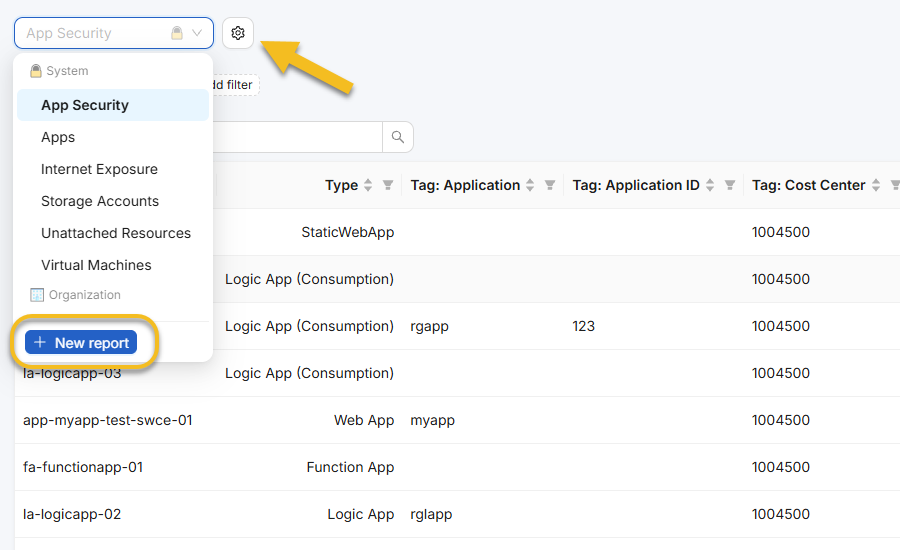
In the top navigation bar, click Resource Reports. Open the Select report dropdown to view reports grouped under 🔒 System, 🏢 Organization, and 📁 Project. To start from scratch with only the default Name column, click + New report at the bottom of the dropdown. To clone a built-in template—such as App Security, Internet Exposure, Virtual Machines, or Storage Accounts—select it, click the Settings (gear) button next to the dropdown, and choose Save as.
Step 2: Filter Resource Types and Configure Report Columns
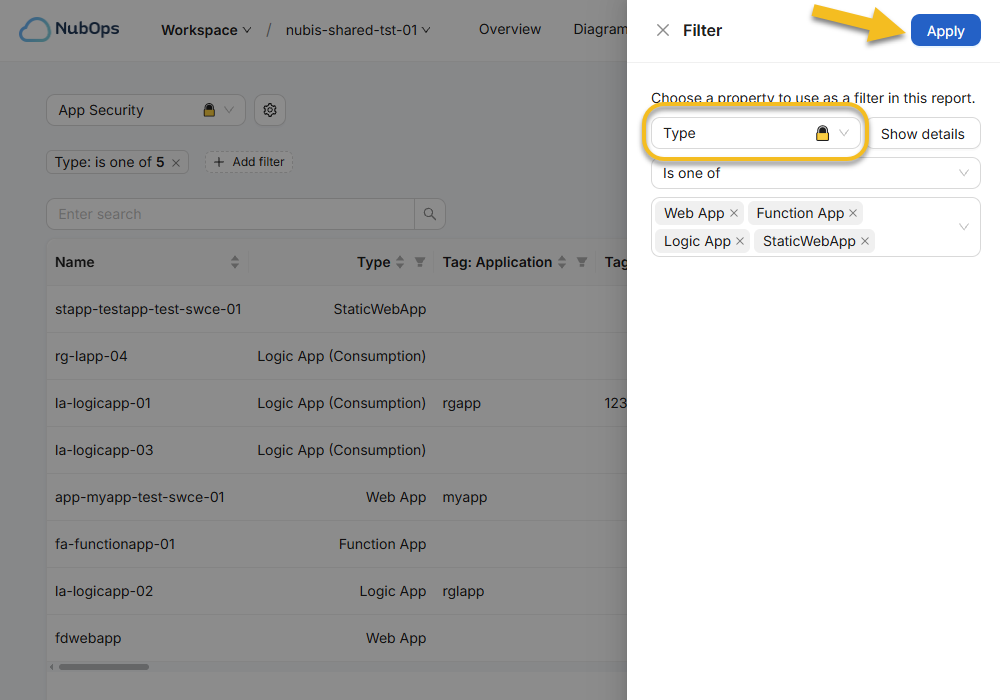
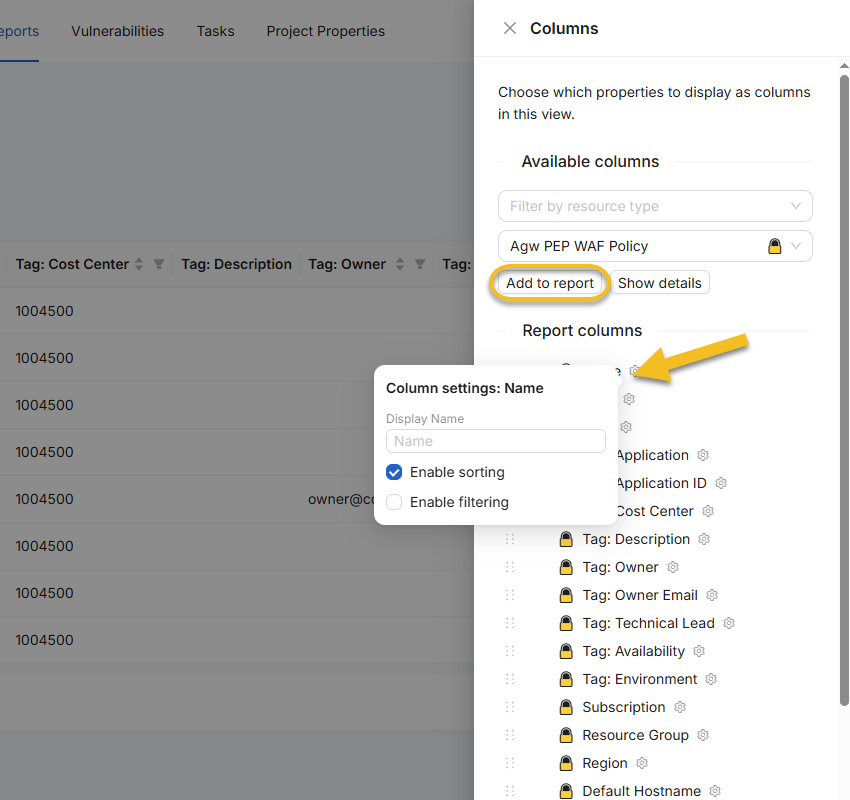
Click + Add filter below the report selector to open the Filter drawer. Choose Type in Select property, keep the Is one of operator, select your target resource types, and click Apply. Next, click Columns on the right toolbar. Under Available columns, filter by resource type or pick a property in Select column, then click Add to report. Under Report columns, drag rows to reorder columns, click Remove from report, or click the column gear icon to toggle Enable sorting and Enable filtering.
Advanced Configuration: Need to pull deeply nested Azure Resource Manager (ARM) attributes that aren’t in the default column list? NubOps allows you to extract custom columns using Custom JSON Path Properties and standardize them across Organization or Project Scopes.
Step 3: Filter, Sort, Save, and Export Your Report
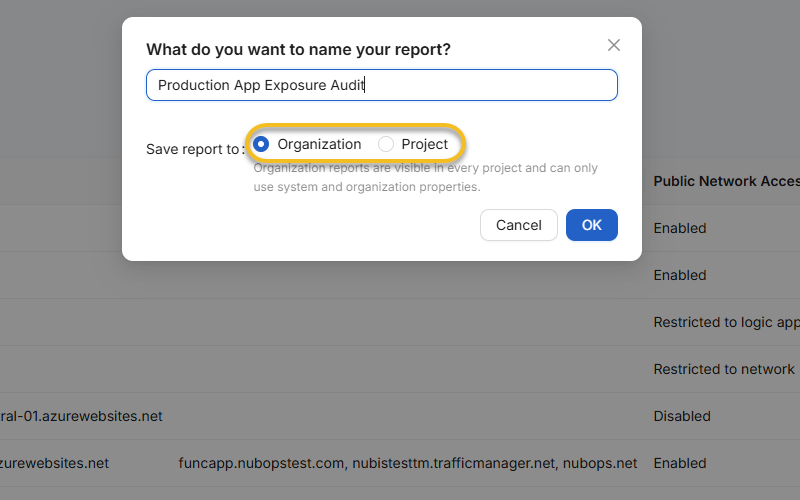
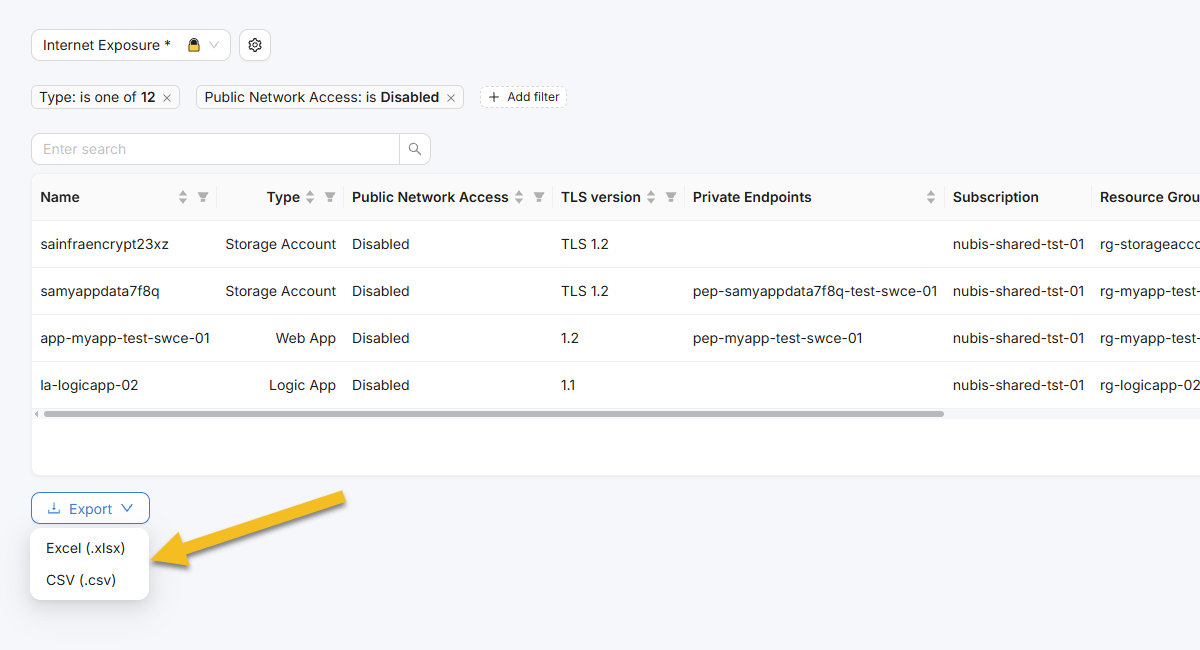
Refine your results by clicking + Add filter to filter on properties like Region, Subscription, Public Network Access, or Tag: Environment using Is, Contains, or Range operators. Use the Enter search field for instant keyword search across rows. To persist your layout, click the Settings (gear) button, select Save or Save as, name the view in What do you want to name your report?, and pick Organization or Project under Save report to. Click Export below the table to download Excel (.xlsx) or CSV (.csv).
Built-In System Report Templates Reference
NubOps includes six pre-configured 🔒 System report templates that you can run immediately or clone via Save as:
| Built-In System Report | Target Azure Resource Types | Key Pre-Configured Columns |
|---|---|---|
| App Security | Web Apps, Function Apps, Logic Apps, Static Web Apps | Public Network Access, Protected by, Agw WAF Policy Mode, Afd WAF Policy Mode, Private Endpoints, Vnet Integration, TLS version, HTTPS Only, FTP State, Remote Debugging |
| Apps | Web Apps, Static Web Apps, Function Apps, Logic Apps | Kind, App Service Plan, Plan Tier, Plan Size, Runtime, Runtime Version, Custom Domains, Public Network Access, App Gateway, Azure Front Door, Slot Swapped |
| Internet Exposure | Web Apps, Static Web Apps, VMs, Storage Accounts, SQL Servers, Cosmos DB, Container Registries, Key Vaults, MySQL/MariaDB | Public Network Access, TLS version, Private Endpoints, Subscription, Resource Group, Region, plus governance tags (Tag: Application, Tag: Owner, Tag: Cost Center, Tag: Environment) |
| Virtual Machines | Virtual Machines, VM Scale Set VMs | Power State, VM Size, Memory, OS Version, OS Disk Size, Disk SKU, Private IP, Public IP Address, Encryption At Host, Secure Boot Enabled, Windows Patch Mode, Linux Patch Assessment Mode |
| Storage Accounts | Storage Accounts | SKU Name, SKU Tier, Blob access tier, Public Network Access, Allow Anonymous Access, Allow Shared Key Access, TLS version, Secure Transfer Required, Private Endpoints, Soft Delete for Blobs, Encryption Type |
| Unattached Resources | Public IP Addresses, Managed Disks (VmDisk), Network Interfaces | Name, Type, Subscription, Resource Group, Region, Attached to resource, Attached to type |
Practical Azure Use Cases by Role
Standardized Resource Reports replace ad-hoc script outputs with repeatable operational views tailored to each engineering discipline:
- Azure Cloud Engineers: Clone the Virtual Machines or Apps system report to track SKU sizes, OS versions, private IP assignments, and VNet/subnet integrations across environments. Engineers can quickly filter for Unattached Resources (orphaned disks, NICs, and public IPs) and export clean inventories to Excel (.xlsx) for capacity planning or change tickets.
- Azure Cloud Architects: Audit multi-subscription resource sprawl, regional placement, App Service Plan tiers, and mandatory governance tags (Tag: Application, Tag: Owner, Tag: Cost Center, Tag: Environment). Saving standardized reports at the 🏢 Organization scope ensures every project is evaluated against the same architectural baseline.
- Azure Security Experts: Use the built-in Internet Exposure, App Security, and Storage Accounts templates to identify resources with Public Network Access enabled, outdated TLS version settings, missing Private Endpoints, or missing WAF policies (Agw WAF Policy Mode, Afd WAF Policy Mode) without inspecting individual portal blades.
Frequently Asked Questions
How do I export an Azure resource inventory to Excel across multiple subscriptions without writing KQL?
In NubOps, navigate to Resource Reports, select a built-in 🔒 System template or click + New report, configure your resource type filters and columns in the visual UI, and click Export → Excel (.xlsx) or CSV (.csv) to download a unified inventory across all connected subscriptions.
Can I include custom Azure tags and nested ARM properties as report columns?
Yes. NubOps provides built-in tag columns (including Tag: Application, Tag: Owner, Tag: Cost Center, and Tag: Environment) and lets you extract any deeply nested Azure Resource Manager (ARM) attribute or connected resource property using Custom JSON Path Properties and Jexl expressions.
Does NubOps require write permissions in Azure to generate Resource Reports?
No. NubOps builds Resource Reports exclusively from read-only snapshots of your Azure environment. It never modifies, mutates, or writes back to your live Azure subscriptions.
What is the difference between System, Organization, and Project Resource Reports?
🔒 System reports are read-only baseline templates built into NubOps. 🏢 Organization reports are custom views shared across every project in your organization for standardized governance, while 📁 Project reports are scoped to a single project for workload-specific analysis. See Organization vs. Project Report Properties for full scoping rules.
Next Steps: Explore Resource Reports in the Live Demo
Whether you are standardizing day-to-day infrastructure operations as an Azure Cloud Engineer, governing multi-subscription topologies as an Azure Cloud Architect, or auditing exposure and encryption baselines as part of an Azure Security team, Resource Reports give you instant, query-free visibility across your tenant.
Ready to test it yourself? Launch the interactive NubOps demo environment on your desktop to explore built-in App Security, Internet Exposure, and Virtual Machines reports, customize columns, and export live sample inventories—no login or Azure connection required.