Extracting Custom Report Columns with Azure JSON Path Expressions

NubOps Custom Report Properties let you extract any nested Azure Resource Manager (ARM) attribute, tag, or connected resource setting from read-only Azure environment snapshots using JSONPath and Jexl expressions—without writing KQL queries or maintaining PowerShell scripts. Every custom property becomes a reusable, sortable, and filterable column in Resource Reports that you can export directly to Excel (.xlsx) or CSV (.csv).
In native Azure tools, surfacing service-specific configuration flags—such as Storage Account network ACL default actions, App Service minimum cipher suites, or WAF policy modes across Private Endpoints—requires digging through raw JSON views in the Azure Portal or writing brittle mv-expand and multi-table join statements in Azure Resource Graph Explorer. NubOps eliminates this friction with an interactive JSON view picker, multi-step Connection traversal, and live snapshot value previews.
Native Azure Property Extraction vs. NubOps Custom Properties
| Capability | Azure Portal (Resource JSON View) | Azure Resource Graph (KQL extend) | PowerShell / Azure CLI Scripts | NubOps Custom Report Properties |
|---|---|---|---|---|
| Query / Scripting Required | None (manual per-resource inspection) | KQL parse_json(), mv-expand, and project | Custom Az / az resource loops and JMESPath | Visual Pick path from example (JSONPath + optional Jexl) |
| Cross-Resource Traversal | Manual clicking across portal links | Complex join queries (capped join limits) | Nested API calls per resource ID | Built-in Connection steps & Lookup Id chaining |
| Multi-Type Polymorphism | Single resource blade at a time | Separate case() branches per type | Conditional script logic per provider | Multiple Sources per property scoped by Resource types |
| Live Value & Type Validation | None | Trial-and-error query execution | Console output debugging | Real-time Preview for example with automatic data type detection |
| Reusable Report Columns & Export | Copy/paste from browser | Saved KQL queries (.csv export only) | Manual CSV serialization | Scoped 🏢 Organization / 📁 Project columns exported to Excel (.xlsx) or CSV (.csv) |
Prerequisites
Before creating custom report columns, ensure you have the following:
- An active NubOps workspace or demo session: Access to a NubOps project, or the NubOps live demo tenant with sample Azure snapshot data.
- A completed Azure snapshot: At least one connected Azure tenant and subscription with an ingested read-only snapshot.
- Project or Organization permissions: Project Properties Manage (
project:properties:manage) or Organization Properties Manage (org:properties:manage) permissions to create or edit custom properties.
New to Resource Reports? If you haven’t built or exported a report yet, start with How to Create and Customize Azure Resource Reports in NubOps.
Create and Add a Custom JSONPath Column in NubOps
Step 1: Open the Create Property Drawer
Navigate to Resource Reports in the top menu bar and click Columns on the right toolbar to open the Columns drawer. Under Available columns, click the Select column dropdown and click + New property at the bottom of the list to open the Create property drawer. (You can also manage properties centrally from Project Properties in the top navigation bar or Organization Properties at the organization level by clicking Create property.)
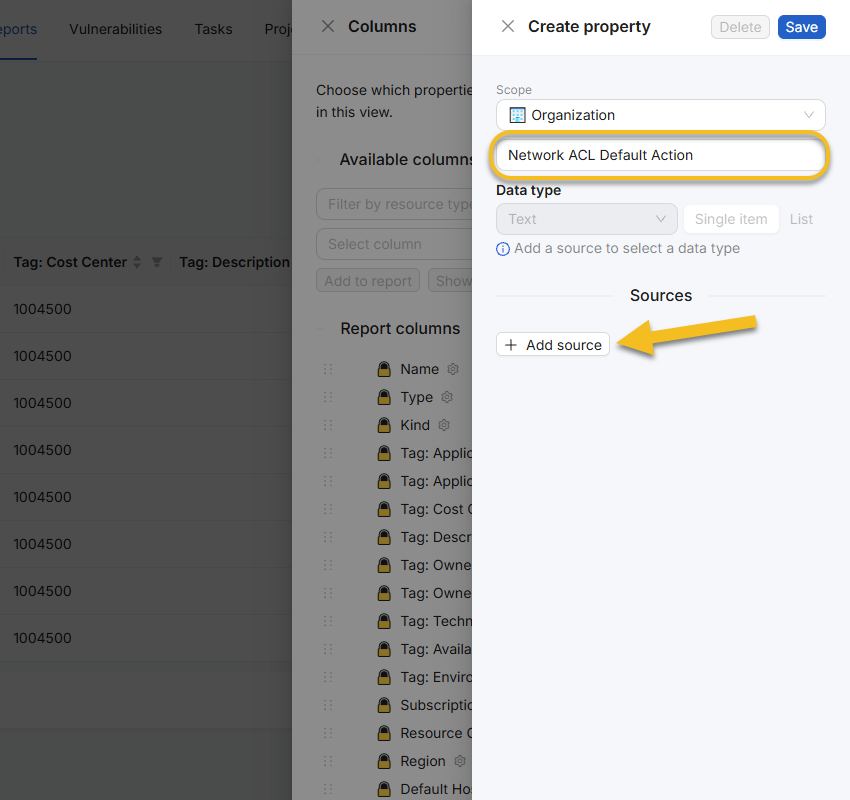
If your account has both organization and project management permissions, select 🏢 Organization or 📁 Project under Scope. Enter a descriptive column header in the Property name input (for example, Network ACL Default Action or Minimum Cipher Suite), then click + Add source under Sources to open the Create source drawer.
Scoping Tip: Not sure whether to create your property at the Organization or Project tier? See Organization vs. Project Report Properties & Saved Views for inheritance and governance rules.
Step 2: Select Resource Types and Pick a JSONPath from an Example Resource
In the Create source drawer, select one or more target services in the Resource types dropdown (such as Storage Accounts, Web Apps, or Virtual Machines), or leave it empty (Leave empty if the source should be applied to all resource types). Toggle Use example resource on, then pick a live resource from your snapshot in the Example resource autocomplete field (Select example resource).
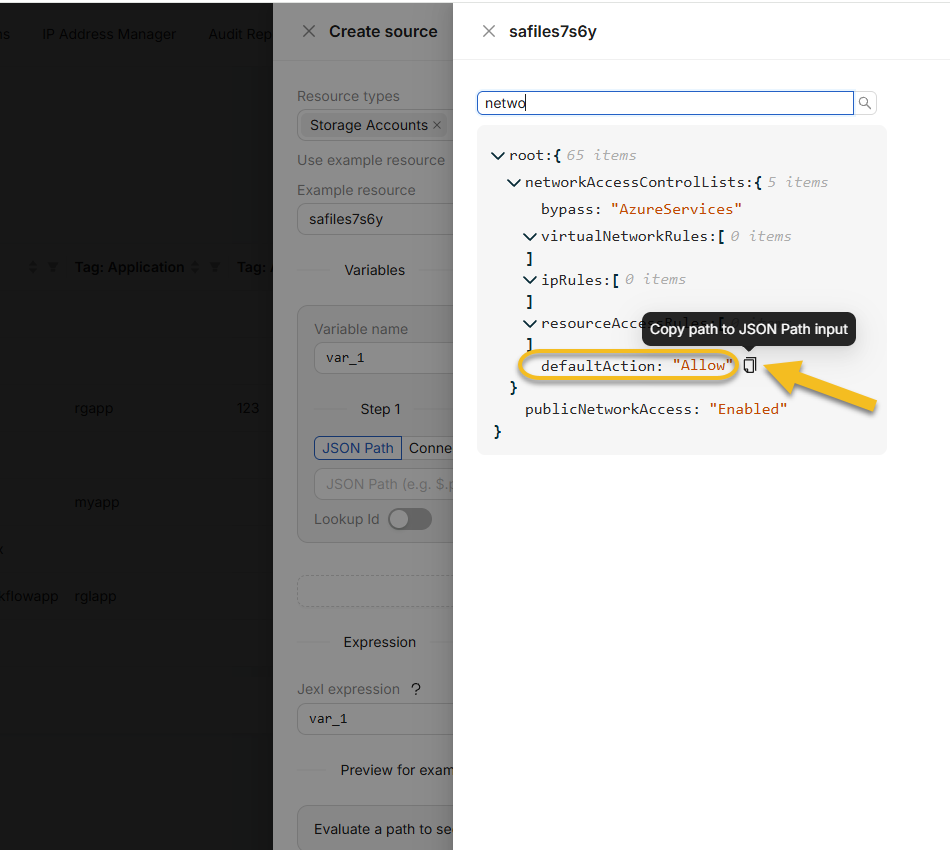
Under Variables (var_1, Step 1), keep the JSON Path radio button selected. Either type an expression into the JSON Path (e.g. $.publicAccess) field or click the Pick path from example icon button next to the input to open the interactive JSON view drawer. In the JSON view drawer, use Search JSON to locate any nested property and click the Copy path to JSON Path input icon next to the field:
 1{
 2  "skuName": "Standard_GRS",
 3  "skuTier": "Standard",
 4  "minimumTlsVersion": "TLS1_2",
 5  "publicNetworkAccess": "Enabled",
 6  "isHnsEnabled": false,
 7  "networkAccessControlLists": {
 8    "bypass": "AzureServices",
 9    "defaultAction": "Deny"
10  }
11}
Clicking Copy path to JSON Path input on defaultAction automatically populates $.networkAccessControlLists.defaultAction into your variable step.
Step 3: Traverse Connected Resources or Transform Values with Jexl (Optional)
NubOps can also resolve properties across linked Azure resources or combine multiple variables before outputting the column value:
- Traverse connected resources (
Connectionstep): Switch Step 1 (or a subsequent step) from JSON Path to Connection and select a linked Resource type under Types connected to example (for example, hopping from a Web App → Private Endpoint → Subnet → Vnet, and extracting$.name). - Resolve ARM Resource IDs (
Lookup Id): When a JSON Path step returns an Azure resource ID (such as$.serverFarmIdon a Web App), toggle Lookup Id on to automatically add Step 2 and extract properties from the referenced target resource (such as$.sku.size). - Combine or format variables with
Jexl expression: Click + Add variable to define additional variables (var_2,var_3), then combine or transform them in the Jexl expression box (click the?Jexl syntax help icon for built-in examples). Common expressions include:var_1 + " (" + var_2 + ")"— concatenate two extracted properties.var_1 | upperorvar_1 | default("N/A")— apply pipe transforms (lower,upper,trim,length,string,number,boolean,default(fallback),split(sep),join(sep),first,last,keys,values).((var_1 | length) || (var_2 | length)) ? "Protected" : "Unprotected"— evaluate conditional security posture across connected WAF policies.
Step 4: Preview the Formatted Value, Save, and Add to Report
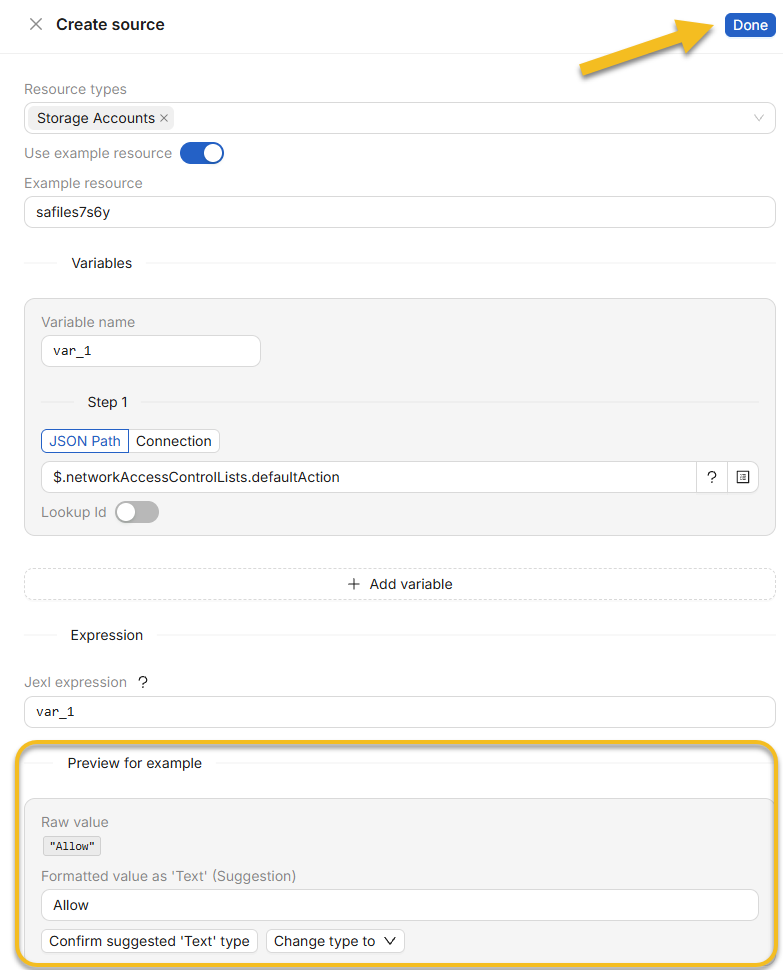
With Use example resource enabled, scroll to Preview for example at the bottom of the Create source drawer. Verify the Raw value and Formatted value, click Confirm suggested ‘Text’ type (or open Change type to to pick Text, Number, Date, or Boolean and toggle Single item or List), and click Done.
Back in the Create property drawer, click Save. Your new property is now selected in the Columns drawer under Available columns—click Add to report to append the column to your table. Click the column’s gear icon under Report columns to enable Enable sorting, Enable filtering, or override the column Display Name.
Built-In System Property JSONPath & Connection Reference
Every built-in 🔒 System column in NubOps is powered by the exact same property engine available to your custom properties. You can inspect any built-in property by selecting it in the Columns drawer and clicking Show details → View. Below are representative examples from NubOps’s seeded system catalog:
| Property Name | Target Resource Types | Step Configuration (JSON Path / Connection) | Data Type |
|---|---|---|---|
| Tag: Environment | All resource types | JSON Path: $.tags[?(@.tagType == 'Environment')].tagValue | Text (Single item) |
Minimum TLS (TLS version) | Storage Accounts | JSON Path: $.minimumTlsVersion | Text (Single item) |
| Cipher | Web Apps, Function Apps, Logic Apps | JSON Path: $.configuration.minTlsCipherSuite | Text (Single item) |
| FTP State | Web Apps, Function Apps, Logic Apps | JSON Path: $.configuration.ftpsState | Text (Single item) |
| Network ACL Default Action | Storage Accounts | JSON Path: $['networkAccessControlLists']['defaultAction'] | Text (Single item) |
| Current CMK Expiration | Storage Accounts | JSON Path: $['encryption']['keyVaultProperties']['currentVersionedKeyExpirationTimestamp'] | Text (Single item) |
| Secure Boot Enabled | Virtual Machines, SQL VMs, VMSS VMs | JSON Path: $['securityProfile']['uefiSettings']['secureBootEnabled'] | Boolean (Single item) |
| Plan Size | All resource types (App Services) | Step 1 JSON Path (Lookup Id on): $.serverFarmId → Step 2 JSON Path: $.sku.size | Text (Single item) |
| PE Vnet | All resource types | Step 1 Connection: Private Endpoint → Step 2 Connection: Subnet → Step 3 Connection: Vnet → Step 4 JSON Path: $.name | Text (Single item) |
| Agw WAF Policy Mode | Web Apps, Function Apps, Logic Apps | Step 1 Connection: Application Gateway → Step 2 Connection: Application Gateway WAF Policy → Step 3 JSON Path: $['policySettings']['mode'] | Text (Single item) |
Practical Azure Use Cases by Role
Custom JSONPath and Connection properties allow each engineering discipline to surface exact Azure configuration attributes without waiting on custom tooling:
- Azure Cloud Engineers: Extract service-specific operational settings—such as Function App runtime versions (
$.functionAppConfig.runtime.version), mounted storage shares ($.configuration.mountedStorage[*].mountName), OS patch modes ($['windowsSettings']['patchMode']), or App Service Plan sizes via$.serverFarmIdLookup Id—and export filtered inventories to Excel (.xlsx) for migration and upgrade tracking. - Azure Cloud Architects: Build polymorphic properties with multiple Sources to normalize governance metadata across diverse Azure services, or chain Connection steps (
Private Endpoint→Subnet→Vnet) to verify private networking topology and tag compliance across subscriptions. - Azure Security Experts: Audit deep security posture controls that are hidden in standard portal tables—including minimum TLS cipher suites (
$.configuration.minTlsCipherSuite), Storage Account CMK key expiration timestamps, UEFI Secure Boot and vTPM status on VMs, and WAF policy enforcement modes across Application Gateways and Azure Front Door.
Frequently Asked Questions
How do I extract a nested Azure Resource Manager property into a Resource Report column?
In NubOps, open Resource Reports, click Columns, open the Select column dropdown, and click + New property. Click + Add source, toggle Use example resource on, and click Pick path from example to copy the exact JSONPath expression from the JSON view drawer. Click Done, Save, and Add to report.
Can a custom report property traverse connected Azure resources like Private Endpoints or WAF policies?
Yes. In the Create source drawer, switch a variable step from JSON Path to Connection and select a linked resource type (such as Private Endpoint, Subnet, or Application Gateway WAF Policy), or enable Lookup Id on a JSONPath step to resolve an Azure resource ID before extracting its attributes.
What is the Jexl expression field used for in NubOps custom properties?
The Jexl expression field combines or transforms one or more extracted variables (such as var_1 and var_2) into the final column output. It supports arithmetic, ternary conditionals, boolean logic, and built-in pipe transforms including lower, upper, trim, length, join(", "), and default("N/A").
Can I define one custom property that works across multiple Azure resource types?
Yes. A single custom property can contain multiple Sources. You can scope individual sources to specific Resource types (for example, extracting TLS settings from different JSON paths on Web Apps vs. Storage Accounts) and optionally include a fallback source with Resource types left empty. See Organization vs. Project Report Properties for sharing custom properties across projects.
Next Steps: Test Custom JSONPath Columns in the Live Demo
Whether you are building deep operational inventories as an Azure Cloud Engineer, standardizing multi-subscription governance across projects as an Azure Cloud Architect, or verifying encryption and network hardening as part of an Azure Security team, custom report properties give you complete access to every captured Azure configuration field.
Ready to inspect how custom properties work against real snapshot data? Launch the interactive NubOps demo environment on your desktop, open Resource Reports → Columns, and click Show details on any property to explore multi-step JSONPath, Connection, and Jexl configurations—no login or Azure connection required.