Connect Azure Using a Microsoft Work Account (Entra ID Consent)

Connecting Azure with a Microsoft Work Account is the fastest way to onboard a project in NubOps—authenticating through Microsoft’s native Entra ID identity platform so NubOps can capture a read-only snapshot of the Azure subscriptions your account can already read, without creating an App Registration or managing client secrets.
When you select Microsoft Work Account in the New project wizard, NubOps redirects you to Microsoft to authorize the NubOps Azure Connector enterprise application. Because enterprise Microsoft Entra ID tenants often enforce strict User consent settings or Conditional Access policies, understanding how delegated permissions and Azure RBAC roles interact helps you resolve sign-in or missing-subscription issues in minutes.
Entra ID User Consent Settings & Impact on NubOps Onboarding
In Microsoft Entra ID (Enterprise applications → Consent and permissions → User consent settings), your tenant’s policy determines whether you can authorize NubOps Sign In and NubOps Azure Connector yourself or whether an Entra ID administrator must approve them:
| Entra ID User Consent Setting | Security Posture | Can Standard Users Consent? | Action Required for NubOps |
|---|---|---|---|
| Allow user consent for apps | Least restrictive | Yes (all apps) | Click Accept on the Microsoft permissions prompt to proceed immediately |
| Allow user consent for apps from verified publishers, for selected permissions | Balanced (Microsoft recommended) | Yes, for verified publishers and low-impact permissions | Click Accept if permitted by policy, or request admin approval if restricted |
| Do not allow user consent | Most restrictive | No (administrators only) | An Entra ID admin must grant tenant-wide admin consent, or you can connect via an App Registration |
Prerequisites
Before connecting with a Microsoft Work Account, ensure you have the following:
- An active NubOps workspace: Access to a NubOps organization with Project Create (
project:create) permission (or Project Azure Syncproject:azure:syncto refresh an existing project), or explore the NubOps live demo tenant first. - A Microsoft Entra ID work account: An account in the target Azure tenant with at least Reader role access on the subscriptions you want to analyze.
- Optional Security Reader role: Assigning Security Reader on your target subscriptions allows NubOps to include Microsoft Defender secure scores and security contacts in your snapshot.
Looking for the full onboarding overview? See Getting Started with NubOps: Connect Azure & Create a Snapshot for all five steps of the New project wizard.
Connect Your Azure Subscriptions Using a Microsoft Work Account
Step 1: Select Microsoft Work Account in the New Project Wizard
In NubOps, click Create new project on the My Projects dashboard (or select + Create New Project from the top-left project switcher). In the Connection step (How you would like to connect to Azure?), keep Microsoft Work Account selected.
Review the Connect using your Microsoft Work Account information panel and click Next. NubOps temporarily redirects your browser to the Microsoft identity platform (login.microsoftonline.com).
Step 2: Sign In with Microsoft and Grant Permission Consent
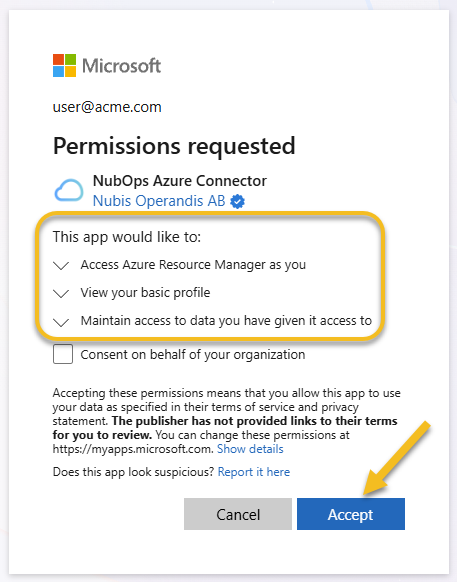
Select the Microsoft Work Account associated with the Azure tenant you want to analyze. If this is your first time connecting that tenant to NubOps, Microsoft displays a Permissions requested prompt for the NubOps Azure Connector application requesting:
- Sign users in (
OpenId) - View users’ basic profile (
Profile) - Maintain access to data you have given it access to (
Offline_access) - Access Azure Service Management as organization users (
https://management.azure.com/user_impersonation— strictly limited to the read permissions your user account holds)
Click Accept to return to the NubOps New project wizard on the Scope step.
Step 3: Select Subscriptions or Resolve Connection Errors
Once redirected back to NubOps, the wizard automatically advances to Step 2 (Scope — Which tenant and subscriptions should be included?). Select your Tenant and one or more Subscriptions, then proceed to Snapshot and Name to finish creating your project.
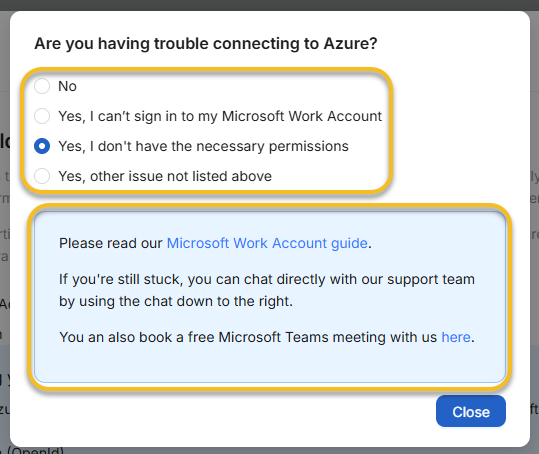
If the Microsoft redirect returns an authentication or consent error, NubOps automatically opens the Are you having trouble connecting to Azure? troubleshooting modal with four options:
- No
- Yes, I can’t sign in to my Microsoft Work Account
- Yes, I don’t have the necessary permissions
- Yes, other issue not listed above
Alternative Path: If your organization’s Entra ID policy blocks user consent for third-party enterprise applications and an administrator is unavailable, switch to App Registration in Step 1 and follow Connect Azure Using an Entra ID App Registration.
NubOps Enterprise Applications & Delegated Permissions Reference
NubOps uses two separate Microsoft Entra ID Enterprise Applications so that user authentication is cleanly separated from Azure Resource Manager snapshot collection:
| Enterprise Application Name | When It Is Used | Requested Scopes / Claims | What NubOps Stores |
|---|---|---|---|
| NubOps Sign In | Signing up and logging in to the NubOps web app with a Microsoft Work Account | openid (Sign users in)profile (View users’ basic profile) | User profile identifier (sub / oid) and display name |
NubOps Azure Connector (c7dfdd16-453f-47d4-b591-e6e1762709bc) | Connecting an Azure project and taking snapshots via Microsoft Work Account | openid (Sign users in)profile (View users’ basic profile)offline_access (Maintain access for token refresh)https://management.azure.com/user_impersonation | Home account identifier (AccountIdentifier) and encrypted MSAL token cache; re-prompts automatically if token expires |
Independent Sign-In vs. Azure Connection: How you log in to NubOps is completely independent of how you connect to Azure. You can sign in to NubOps with an email address (or one Microsoft account) and still connect projects to any Azure tenant using a different Microsoft Work Account or an Entra ID App Registration.
Troubleshooting Common Microsoft Work Account Issues
- “Need admin approval” or
AADSTS65001/ consent blocked during sign-in: Your Entra ID tenant is configured to Do not allow user consent (or restrictsuser_impersonationconsent). Ask a Global Administrator, Privileged Role Administrator, or Cloud Application Administrator to grant admin consent for NubOps Azure Connector in Microsoft Entra ID (Enterprise applications → NubOps Azure Connector → Permissions → Grant admin consent). - The
TenantorSubscriptionsdropdown is empty in theScopestep: NubOps only lists subscriptions that are in theENABLEDstate and where your signed-in Microsoft Work Account has read permissions. In the Azure Portal, open Subscriptions → select your subscription → Access control (IAM) → View my access to confirm you hold at least the Reader role. - Multi-tenant guest accounts (
B2Baccess): If your Microsoft Work Account is a guest in a client’s Azure tenant, make sure your guest account has accepted the tenant invitation and holds the Reader role on the client’s subscriptions, then select that client tenant in the Tenant dropdown during the Scope step.
Practical Azure Use Cases by Role
Connecting with a Microsoft Work Account lets each role validate their live Azure environment immediately without waiting for IAM service principal tickets:
- Azure Cloud Engineers: Authenticate with your existing daily engineering credentials, capture a snapshot of a sandbox or production subscription in minutes, and immediately inspect VNet IP allocations in IP Address Manager or export inventories from Resource Reports.
- Azure Cloud Architects: Quickly snapshot multiple subscriptions you oversee using This Computer Only (local browser storage) for rapid architectural discovery, or choose NubOps Cloud to share interactive Diagrams with your project team.
- Azure Security Experts: Verify CIS Benchmark compliance in Audit Report and inspect public exposure in Vulnerabilities using your existing read-only security account—knowing NubOps never requests write permissions in your tenant.
Frequently Asked Questions
What permissions does the NubOps Azure Connector Enterprise Application request?
NubOps Azure Connector requests delegated read-only permissions to sign you in (openid), view your basic profile (profile), maintain access for snapshot refresh tokens (offline_access), and read Azure Resource Manager resources that your signed-in account already has permission to view.
Why am I seeing an “Are you having trouble connecting to Azure?” or “Need admin approval” prompt?
Your organization’s Microsoft Entra ID User consent settings may restrict non-admin users from consenting to new Enterprise Applications. Either ask an Entra ID administrator to grant admin consent for NubOps Azure Connector, or connect using an Entra ID App Registration.
Why are some of my Azure subscriptions missing in the Scope step?
When you connect with a Microsoft Work Account, NubOps can only list and read Azure tenants and subscriptions where your signed-in identity holds read permissions (such as Reader) and where the subscription state is Enabled.
Does NubOps store my Microsoft account password or write to my Azure tenant?
No. Authentication is handled directly by Microsoft’s native OAuth 2.0 / OpenID Connect identity platform. NubOps never sees your password and only performs read-only GET requests against Azure Resource Manager APIs.
Next Steps: Complete Your Snapshot or Try the Live Demo
Whether you are troubleshooting day-to-day infrastructure as an Azure Cloud Engineer, mapping dependencies across subscriptions as an Azure Cloud Architect, or verifying tenant security posture in Azure Security, connecting your Microsoft Work Account gets you from sign-in to a complete environment snapshot in minutes.
Want to explore NubOps while waiting for Entra ID admin approval? Launch the interactive NubOps demo environment on your desktop to test interactive diagrams, custom Resource Reports, and CIS policy audits with sample data—no login required.