Organization vs. Project Report Properties & Saved Views

NubOps Report & Property Scoping is a three-tier governance hierarchy (🔒 System, 🏢 Organization, and 📁 Project) that controls how saved Resource Reports and custom JSONPath properties are inherited across multi-project Azure environments. Working entirely from read-only Azure environment snapshots, Cloud Architects, MSPs, and platform teams can enforce organization-wide reporting standards across every subscription while allowing project teams to build isolated troubleshooting views and export clean inventories to Excel (.xlsx) or CSV (.csv).
In native Azure tools, standardizing inventory views across multiple business units or customer tenants requires duplicating Azure Resource Graph (KQL) queries across management groups, manually distributing PowerShell scripts, or re-configuring Azure Portal blade columns per user. NubOps eliminates this fragmentation by automatically propagating 🏢 Organization reports and properties to every existing and newly created project in your tenant, while enforcing strict downward-visibility rules so shared views never break.
Native Azure Query Sharing vs. NubOps Tiered Scoping
| Capability | Azure Portal Saved Views | Azure Resource Graph Shared Queries | PowerShell / CLI Script Repos | NubOps Tiered Report & Property Scoping |
|---|---|---|---|---|
| Multi-Project Inheritance | Tied to individual user browser/portal state | Scoped to Azure Resource Groups or Subscriptions via Azure RBAC | Manual Git sync and script execution per tenant | Automatic inheritance across 🔒 System, 🏢 Organization, and 📁 Project tiers |
| Reusable Custom Columns | None (manual column selection per blade) | Requires copying KQL extend and project logic into every query | Duplicated JMESPath or custom object properties | Shared 🏢 Organization and 📁 Project properties with grouped scope pickers |
| Cross-Scope Dependency Protection | None | Queries fail or return empty columns if schema assumptions differ | Runtime script errors | Built-in downward-visibility enforcement and cascade dependency checks on delete |
| Access Control Model | Azure Portal UI state | Azure RBAC Microsoft.ResourceGraph/queries permissions | External repository permissions | Granular org:*:manage and project:*:manage RBAC permissions |
| Standardized Export Formats | .csv only | .csv only | Custom script output | Formatted Excel (.xlsx) and CSV (.csv) across all scopes |
Prerequisites
Before managing or promoting scoped Resource Reports and properties, ensure you have the following:
- An active NubOps workspace or demo session: Access to a NubOps organization and project, or the NubOps live demo tenant with sample multi-subscription data.
- A completed Azure snapshot: At least one connected Azure tenant and subscription with an ingested read-only snapshot.
- Organization or Project management permissions:
- Organization tier:
org:resource-reports:manageto save/edit organization reports andorg:properties:manageto create/edit organization properties. - Project tier:
project:resource-reports:manageto save/edit project reports andproject:properties:manageto create/edit project properties.
- Organization tier:
New to Resource Reports or Custom Columns? Review the Azure Resource Reports Quickstart to build your first inventory view, or learn how to extract nested ARM attributes in Extracting Custom Report Columns with Azure JSON Path Expressions.
Configure and Manage Organization vs. Project Scopes in NubOps
Step 1: Create or Scope Custom Properties at the Organization or Project Tier
You can define custom properties either directly inside Resource Reports or from the dedicated property management pages:
- Inline from a report: In Resource Reports, click Columns on the right toolbar (or + Add filter), open the Select column (or Select property) dropdown, and click + New property at the bottom of the list to open the Create property drawer. If your account holds both
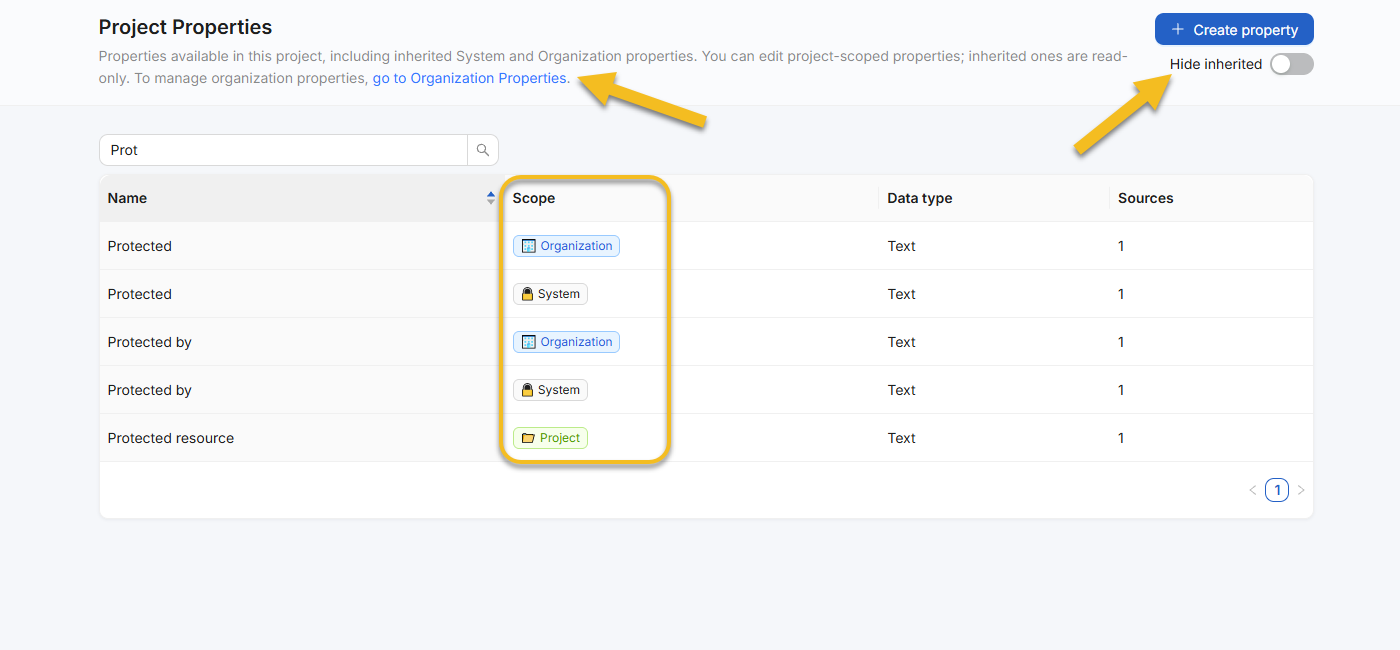
org:properties:manageandproject:properties:manage, choose 🏢 Organization or 📁 Project in the Scope dropdown before entering the Property name and clicking + Add source. - Centralized property catalogs: In a project workspace, click Project Properties in the top navigation bar to view all applicable properties (🔒 System, 🏢 Organization, and 📁 Project). Toggle Hide inherited on to filter the table down to editable 📁 Project rows only. To manage tenant-wide properties, click the go to Organization Properties link in the subtitle (or switch to your organization context in the top-left switcher and click Organization Properties in the top menu) and click Create property.
Step 2: Add Scoped Columns and Filters Using Downward-Visibility Rules
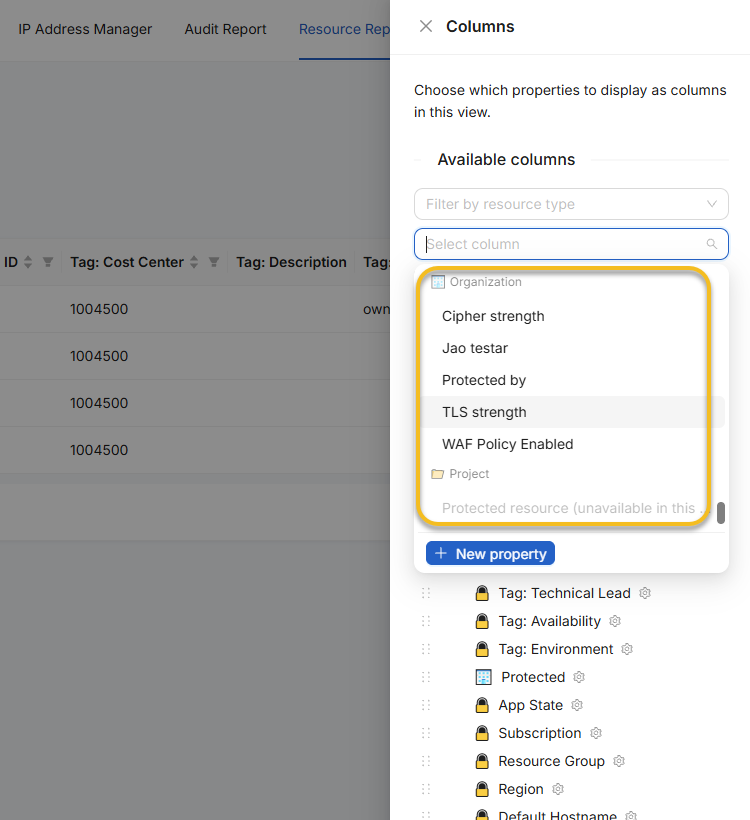
When you edit a report in Resource Reports and open the Columns or Filter drawer, the Select column / Select property picker groups every available property under 🔒 System, 🏢 Organization, and 📁 Project headers. Under Report columns, each column displays its scope icon (🔒, 🏢, or 📁) next to the column title so you can immediately see where every attribute originates.
NubOps enforces a strict downward-visibility rule: a saved report can only reference properties that are guaranteed to exist everywhere that report is visible:
- Editing a 📁 Project report (or a new unsaved report) allows you to add 🔒 System, 🏢 Organization, and 📁 Project properties.
- Editing an 🏢 Organization report allows you to add 🔒 System and 🏢 Organization properties. Any 📁 Project properties appear disabled in the dropdown with the suffix
(unavailable in this view)so you never accidentally break an organization-wide view for other projects.
Step 3: Save or Promote a Resource Report Across Scopes
If a 📁 Project report proves valuable across multiple engineering teams or customer subscriptions, you can promote a copy to the 🏢 Organization scope without rebuilding its filters or columns:
- Open the report in Resource Reports using the Select report dropdown.
- Click the Settings (gear) button next to Select report and choose Save as (or click Save when saving a + New report for the first time).
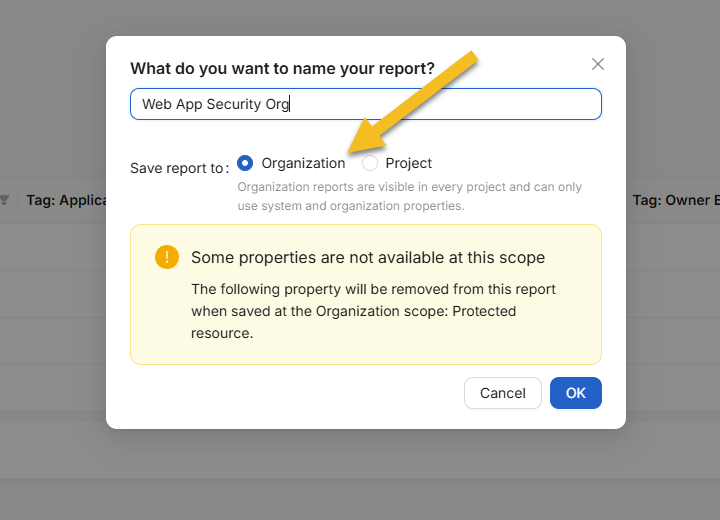
- In the What do you want to name your report? modal, enter a standardized report name and select Organization (or Project) under Save report to.
- Review the scope helper message:
- Organization: “Organization reports are visible in every project and can only use system and organization properties.”
- Project: “Project reports are visible only in this project and can use any property.”
- If your current view includes any 📁 Project-scoped columns or filters and you select Organization, NubOps displays a warning banner (Some properties are not available at this scope) listing the exact properties that will be automatically stripped when saved. Click OK to create the organization report.
Step 4: Inspect Dependencies Before Deleting a Custom Property
When you retire an 🏢 Organization or 📁 Project property—either from Project Properties, Organization Properties, or by clicking Show details → Delete inside the Columns drawer—NubOps performs a pre-flight dependency check across all saved reports.
If any 🏢 Organization or 📁 Project report uses that property as a column or filter, NubOps opens a Delete property? confirmation modal listing every affected report name. Confirming Delete it cleanly cascades the removal, stripping the deleted property’s column and filter entries from those dependent views so every saved report continues to load without errors.
NubOps Scope Hierarchy, Permissions & Inheritance Reference
The table below summarizes the exact visibility, compatibility rules, and permission constants enforced by NubOps across all three tiers:
| Dimension | 🔒 System Scope | 🏢 Organization Scope | 📁 Project Scope |
|---|---|---|---|
| Scope Badge & Tag Color | 🔒 System (Default gray tag) | 🏢 Organization (Blue tag) | 📁 Project (Green tag) |
| Visibility Boundary | Every project in every organization | Every existing and future project in your Organization | Only the specific Project where it was created |
| Origin & Typical Examples | Built-in (seeded by NubOps): Reports: App Security, Apps, Internet Exposure, Virtual Machines, Storage Accounts, Unattached ResourcesProperties: Name, Type, Region, TLS version, Tag: Environment | User-created at the Organization level (none built in): Custom company-wide compliance views, MSP baseline reports, standardized cost/owner tag properties | User-created at the Project level (none built in): Workload migration checklists, single-subscription troubleshooting filters, niche app properties |
| Allowed Property Scopes in Reports | 🔒 System properties only | 🔒 System + 🏢 Organization properties | 🔒 System + 🏢 Organization + 📁 Project properties |
| Report Read / Manage Permissions | Built-in (project:resource-reports:read to view in project; read-only) | Read: org:resource-reports:readManage: org:resource-reports:manage | Read: project:resource-reports:readManage: project:resource-reports:manage |
| Property Read / Manage Permissions | Built-in (project:properties:read to view in project; read-only) | Read: org:properties:readManage: org:properties:manage | Read: project:properties:readManage: project:properties:manage |
| Deletion Behavior | Cannot be modified or deleted | Deleting a property warns of dependent reports and cascades removal across org & project views | Deleting a property warns of dependent reports and cascades removal; project reports can be deleted by their creator with project:resource-reports:manage |
Practical Azure Use Cases by Role
Separating 🏢 Organization baselines from 📁 Project workspaces allows each cloud engineering discipline to collaborate without cluttering shared dropdowns:
- Azure Cloud Architects: Define mandatory governance columns—such as custom JSONPath properties for corporate tags, regional placement rules, or private networking (
PE Vnet)—at the 🏢 Organization tier. Every new project onboarded for a business unit or MSP client immediately inherits the same architectural reports without manual setup. - Azure Cloud Engineers: Build ad-hoc 📁 Project reports and custom columns to track subscription-specific VM right-sizing, App Service runtime upgrades, or unattached resource cleanup during a migration sprint, then export clean Excel (
.xlsx) sheets for change tickets without polluting the organization-wide report list. - Azure Security Experts: Clone built-in 🔒 System templates like Internet Exposure and App Security, add organization-specific compliance filters (such as minimum cipher suites or CMK expiration dates), and save them at the 🏢 Organization scope so security auditors can run identical posture assessments across every Azure environment.
Frequently Asked Questions
What is the difference between System, Organization, and Project scopes in NubOps?
🔒 System scope contains read-only baseline reports and properties provided by NubOps. 🏢 Organization scope shares custom Resource Reports and JSONPath properties across every project in your organization, while 📁 Project scope restricts views and custom columns to a single project workspace.
Can an Organization-scoped Resource Report use a Project-scoped custom property?
No. NubOps enforces a downward-visibility rule so saved reports work reliably in every project where they are visible. 🏢 Organization reports can only reference 🔒 System and 🏢 Organization properties. If you promote a report containing 📁 Project properties to the Organization scope via Save as, NubOps warns you and removes the incompatible project columns/filters on save.
How do I promote a Project Resource Report to the Organization scope?
Open the report in Resource Reports (see the Azure Resource Reports Quickstart), click the Settings (gear) button next to the Select report dropdown, and select Save as. Enter the report name in What do you want to name your report?, select Organization under Save report to, and click OK. Ensure any custom properties used by the report are also created at the 🏢 Organization scope.
What happens if I delete a custom property that is used in saved Resource Reports?
When you delete an 🏢 Organization or 📁 Project property from Organization Properties, Project Properties, or the Columns drawer, NubOps checks for dependent views first. If any reports use the property, a Delete property? modal lists every affected report and warns that confirming Delete it will remove the column and any filters using it from those reports.
Next Steps: Explore Scoped Resource Reports in the Live Demo
Whether you are standardizing multi-tenant governance across projects as an Azure Cloud Architect, running workload-specific inventory exports as an Azure Cloud Engineer, or enforcing organization-wide compliance baselines as part of an Azure Security team, NubOps’s tiered scoping model keeps your reporting structured and maintainable.
Ready to see how reports and properties work in practice? Launch the interactive NubOps demo environment on your desktop to explore 🔒 System templates, inspect property definitions in Project Properties, and test report customization—no login or Azure connection required.