Connect Azure Using an Entra ID App Registration (Service Principal)

Connecting Azure with an Entra ID App Registration lets you scope NubOps to an explicit, read-only Service Principal across selected Azure subscriptions using a Tenant Id, Application (client) ID, and Client Secret. Because NubOps never stores your Client Secret and only requires the built-in Reader (and optional Security Reader) role in Azure IAM, security and platform teams get deterministic, least-privilege coverage across every snapshot.
While a Microsoft Work Account connection inherits whatever permissions a signed-in user happens to hold, an Entra ID App Registration gives cloud architects, MSPs, and security teams a dedicated identity whose subscription scope stays consistent regardless of which team member refreshes the project snapshot.
Required Credentials & Azure RBAC Roles Reference
To verify and connect an App Registration in NubOps, prepare these three Entra ID values and subscription role assignments:
| Configuration Item | Where to Find It in Azure Portal | Required / Optional | How NubOps Uses It |
|---|---|---|---|
| Tenant Id | Microsoft Entra ID → App registrations → <Your App> → Overview → Directory (tenant) ID | Required | Identifies the target Microsoft Entra ID directory for OAuth token acquisition |
| Client Id | Microsoft Entra ID → App registrations → <Your App> → Overview → Application (client) ID | Required | Identifies the Service Principal application; saved with the NubOps project |
| Client Secret | Microsoft Entra ID → App registrations → <Your App> → Certificates & secrets → Value | Required (never stored) | Authenticates the snapshot job; never stored in NubOps—re-entered when taking a new snapshot |
| Reader Role (Azure IAM) | Subscriptions → <Subscription> → Access control (IAM) → Role assignments | Required | Grants read-only access to Azure Resource Manager resources, networking, and configurations |
| Security Reader Role (Azure IAM) | Subscriptions → <Subscription> → Access control (IAM) → Role assignments | Recommended | Grants read-only access to Microsoft.Security posture data and Microsoft Defender findings |
Prerequisites
Before configuring an App Registration connection, ensure you have the following:
- An active NubOps workspace: Access to a NubOps organization with Project Create (
project:create) permission, or explore the NubOps live demo tenant with sample data. - Microsoft Entra ID permissions to register an app: Permission to create an App Registration in Microsoft Entra ID (such as Application Developer or Cloud Application Administrator).
- Azure subscription IAM permissions: Permission to assign roles (
Role Based Access Control AdministratororUser Access Administrator) on the target Azure subscriptions.
New to NubOps onboarding? Review Getting Started with NubOps: Connect Azure & Create a Snapshot for the complete 5-step project creation workflow.
Create an Entra ID App Registration and Connect It to NubOps
Step 1: Register a New Application in Microsoft Entra ID and Copy Your IDs
- Sign in to the Azure Portal (
https://portal.azure.com) and open Microsoft Entra ID. - In the left menu under Manage, select App registrations and click + New registration.
- Enter a descriptive Name (for example,
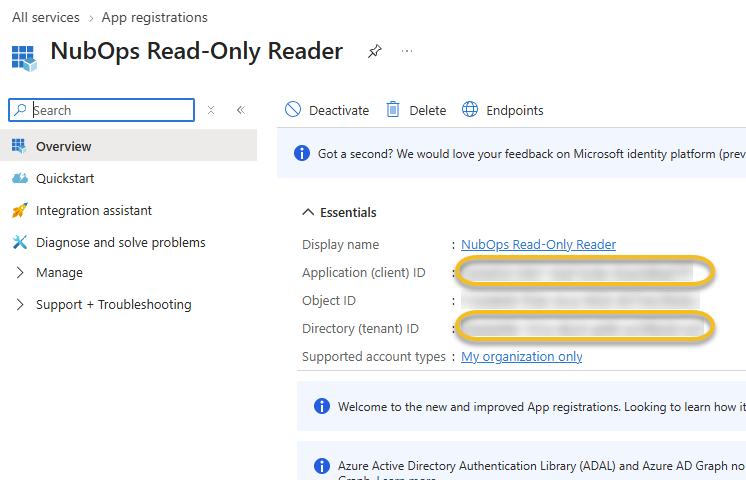
NubOps Read-Only Reader), keep Single tenant only selected under Supported account types, and click Register. - On the new application’s Overview blade, copy both the Application (client) ID (used as Client Id in NubOps) and the Directory (tenant) ID (used as Tenant Id in NubOps).
Step 2: Generate a Client Secret and Copy the Secret Value
- Inside your App Registration in the Azure Portal, select Certificates & secrets in the left menu under Manage.
- On the Client secrets tab, click + New client secret.
- Enter a Description (for example,
NubOps Snapshot Secret), select an expiration period that matches your security policy, and click Add. - Immediately click the Copy to clipboard icon next to the Value column (do not copy the Secret ID). Store this secret in your password manager or key vault, as Azure permanently hides the Value once you leave the blade.
Step 3: Assign Reader and Security Reader Roles on Target Azure Subscriptions
Only grant access to the specific Azure subscriptions you want NubOps to analyze (we recommend starting with a sandbox or non-production subscription for your initial evaluation, or scoping across your production landing zones):
- In the Azure Portal, open Subscriptions and select the subscription you want to include.
- Select Access control (IAM) in the left menu, click + Add, and choose Add role assignment.
- On the Role tab (
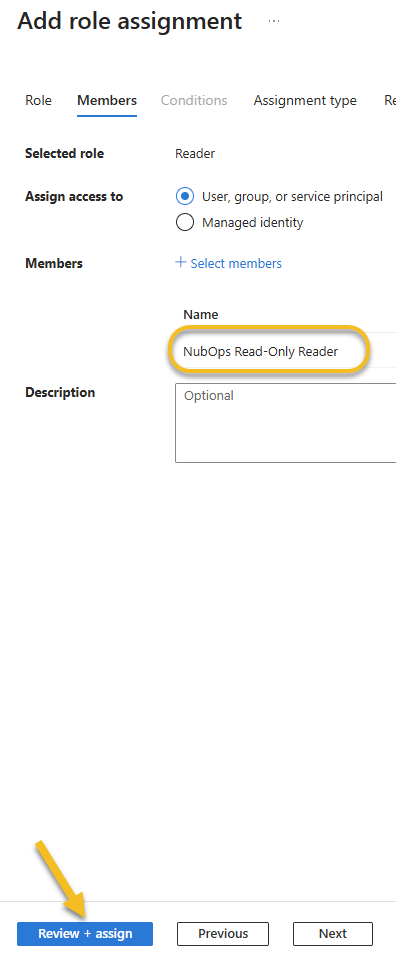
Job function roles), search for and select Reader, then click Next. - On the Members tab, keep User, group, or service principal selected, click + Select members, search for your App Registration name (e.g.,
NubOps Read-Only Reader), click it, and click Select. - Click Review + assign twice to complete the assignment.
- (Recommended) Repeat steps 2–5 on the same subscription to assign the Security Reader role to the same App Registration so NubOps can read Microsoft Defender security posture data.
Step 4: Verify Your App Registration Credentials in NubOps
- In NubOps, click Create new project on the My Projects dashboard to open the New project wizard.
- In Step 1 (Connection), select the App Registration radio option and click Next.
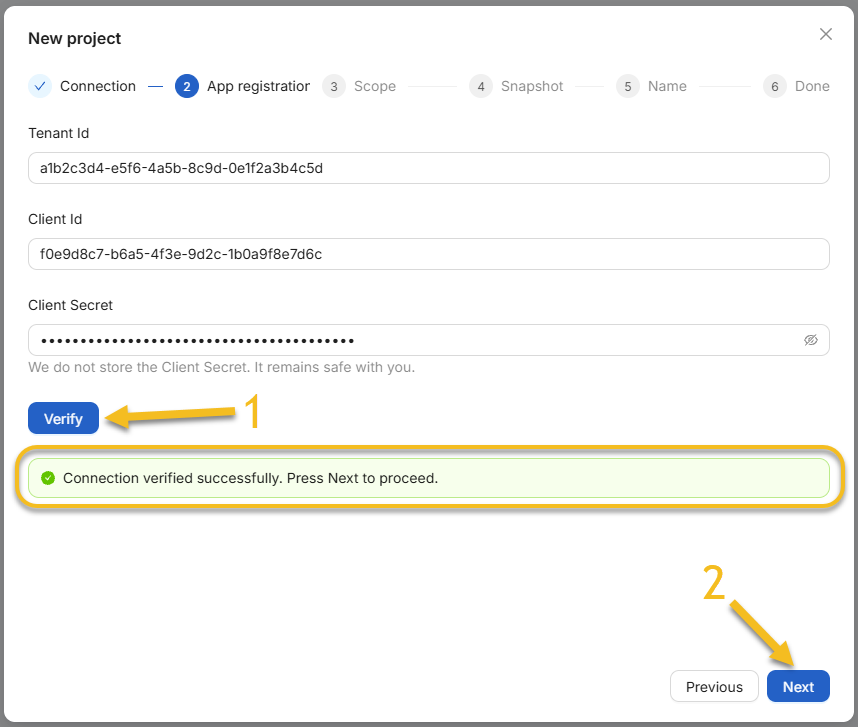
- In Step 2 (App registration), paste your Tenant Id, Client Id, and Client Secret (
We do not store the Client Secret. It remains safe with you.). - Click Verify. NubOps tests your credentials against Azure Resource Manager and displays Connection verified successfully. Press Next to proceed.
- Click Next to select your Tenant and Subscriptions in the Scope step, capture your Snapshot (NubOps Cloud or This Computer Only), and Name your project.
Refreshing Snapshots Later: When you take a subsequent snapshot on an App Registration project, NubOps opens the App Registration credentials dialog with your Tenant Id and Client Id already remembered—you only need to paste your Client Secret and click Connect.
App Registration Verification Messages & Troubleshooting Reference
When you click Verify in the App registration step (or Connect in the App Registration credentials modal when refreshing a snapshot), NubOps evaluates your service principal and returns one of the following exact status messages:
| Verification Alert in NubOps | Alert Type | Root Cause in Azure / Entra ID | How to Resolve |
|---|---|---|---|
Connection verified successfully. Press Next to proceed. | Success (Green) | Tenant, subscription Reader, and Security Reader checks all passed | Click Next to select your subscriptions and create your snapshot |
The App Registration lacks the required read access to security related data. You may connect anyway but your result will be limited. A 'Security Reader' role assignment is missing on the following subscriptions: ... | Warning (Yellow) | App Registration has Reader, but lacks Security Reader on one or more subscriptions | Click Next (or Connect anyway) to proceed now, or assign the Security Reader role in Azure IAM for full security coverage |
The App Registration lacks the required read access to Subscriptions... | Warning (Yellow) | App Registration can authenticate to the tenant, but has no subscription IAM role assignments yet | Assign the Reader role to the App Registration under Subscriptions → Access control (IAM) |
Specified tenant identifier is invalid. (AADSTS900023) | Error (Red) | The Tenant Id format or directory GUID does not exist | Copy the exact Directory (tenant) ID GUID from the App Registration Overview blade |
App Registration was not found in the Azure AD directory. (AADSTS700016) | Error (Red) | The Client Id does not exist in the specified Tenant Id (or you pasted the Object ID instead) | Copy the Application (client) ID from the App Registration Overview blade |
Invalid client secret provided. (AADSTS7000215) | Error (Red) | You pasted the Secret ID instead of the secret Value, or the secret has expired | Create a new client secret under Certificates & secrets and copy the Value column |
App Registration lacks the required read access to the tenant. | Error (Red) | Service principal cannot read /tenants or has no RBAC assignments in the directory | Assign the Reader role on at least one enabled subscription in the tenant and retry |
Practical Azure Use Cases by Role
Connecting with an Entra ID App Registration provides predictable, auditable access control across engineering teams:
- Azure Security Experts: Enforce strict least-privilege governance by scoping the service principal exclusively to Reader and Security Reader on target subscriptions—knowing the Client Secret is never persisted in NubOps databases.
- Azure Cloud Architects: Maintain consistent multi-subscription topology diagrams and snapshot histories across shared NubOps Cloud projects without relying on an individual architect’s personal Entra ID account permissions.
- Azure Cloud Engineers: Refresh project snapshots on demand and export multi-subscription Resource Reports to Excel (
.xlsx) or CSV (.csv) with deterministic subscription coverage across dev, staging, and production landing zones.
Frequently Asked Questions
What Azure RBAC roles does the Entra ID App Registration need for NubOps?
Assign the built-in Reader role on each Azure subscription you want to analyze. We also recommend assigning the built-in Security Reader role on those subscriptions so NubOps can retrieve Microsoft Defender secure scores and security posture data.
Does NubOps store my App Registration Client Secret?
No. NubOps only stores the Tenant Id and Client Id on the project record. The Client Secret is never saved or stored in NubOps, so it remains exclusively under your control and is entered when creating a new snapshot.
Which Client Secret value should I copy from the Azure Portal?
In the Azure Portal under Certificates & secrets, copy the secret’s Value column immediately after creation—not the Secret ID. Azure masks the secret Value permanently once you leave the blade.
What happens when I click Verify in the NubOps App Registration step?
NubOps authenticates against Azure Resource Manager using your Tenant Id, Client Id, and Client Secret to verify tenant read access, subscription visibility, and security data access—displaying a green success banner or specific remediation guidance before you proceed.
Next Steps: Connect Your Service Principal or Try the Live Demo
Whether you are auditing tenant security baselines in Azure Security, governing multi-subscription architectures as an Azure Cloud Architect, or exporting detailed infrastructure inventories as an Azure Cloud Engineer, an Entra ID App Registration gives your team repeatable, read-only visibility across Azure.
Want to test NubOps before creating an App Registration in your tenant? Launch the interactive NubOps demo environment on your desktop to explore CIS policy audits, Microsoft Defender vulnerability exposure diagrams, and custom Resource Reports—no login or Azure setup required.